Time tracking, projects and invoicing

Every hour your team worked, and what it was worth.

Time tracking, projects, invoices and quotes for teams that bill by the hour. It’s free during the beta, with every feature included.

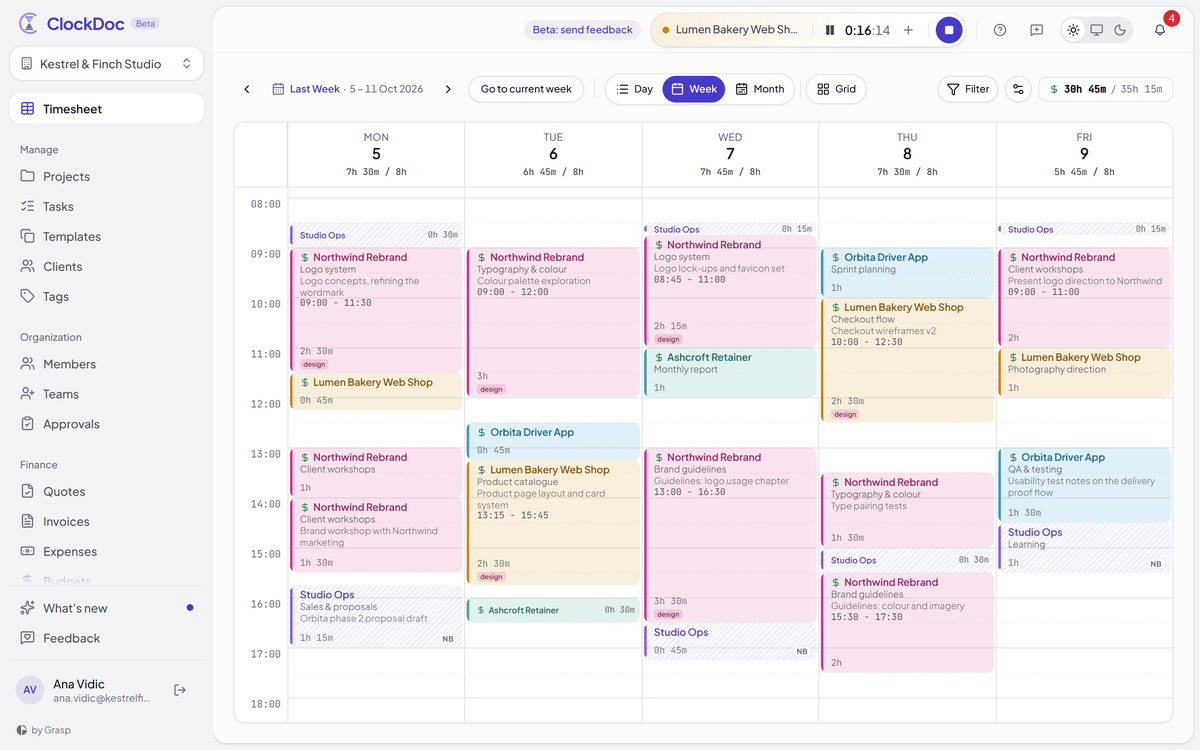
ClockDoc's week calendar: Monday to Friday of time entries, each block in its project's colour, the day's total against its target above every column, a running timer in the top bar and the week's billable total in the corner.

A week in ClockDoc, coloured by project.

Track the hours, get them approved, invoice them and plan the next week. One app for all of it, and free while it’s in beta.

  • FreeEvery feature, free during the beta. Teams of up to 5 people stay free after it.
  • BillableRates per project, and invoices in each client’s own currency.
  • LockedApprove a week, then lock it so nobody can change it later.
  • InstallableA web app that installs to your phone’s home screen.

Track

See your whole week at a glance.

  1. The timer stays with you

    Start it on a project and it stays in the top bar on every page. You can pause, resume or stop it from wherever you are.

    • Start
    • Pause
    • Resume
    • Stop
  2. Each day against its target

    Each day shows the hours logged next to the hours expected, based on the person’s weekly capacity. You notice a short day on the day, not on Friday.

    • Daily target
    • Weekly capacity
  3. Colour by project

    Each project keeps its colour everywhere in the app. Billable entries show a $, non-billable ones are marked NB, and tags show on the entry.

    • Billable
    • Non-billable
    • Tags
  4. Four ways to see the week

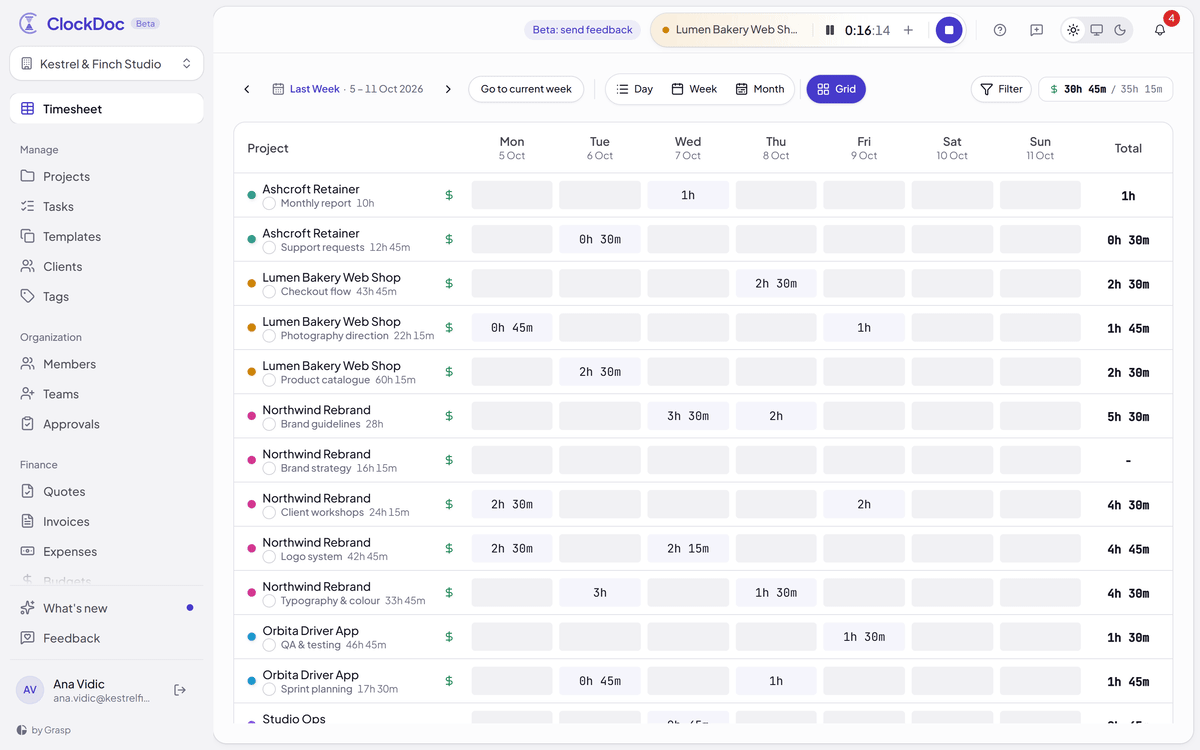
    Day, Week and Month calendars, or the Grid, with one row per task for filling in a whole week at once.

    • Day
    • Week
    • Month
    • Grid
  5. Week totals

    Every view shows billable hours against total hours in the corner. You can filter them and save the filters you use often.

    • Billable total
    • Filters
    • Saved filters
A week in ClockDoc's calendar: entries for Northwind Rebrand, Lumen Bakery Web Shop, Orbita Driver App, Ashcroft Retainer and Studio Ops, each in its project's colour.
The same week in the Grid view: one row per project and task, a column per day and a total per row.
The same week in the Grid: one row per task, a column per day.

Approve

Approve the week,then lock it.

Once hours are on an invoice, they shouldn’t change. Go through each person’s weeks, approve or reject the entries, and lock the weeks you’re done with.

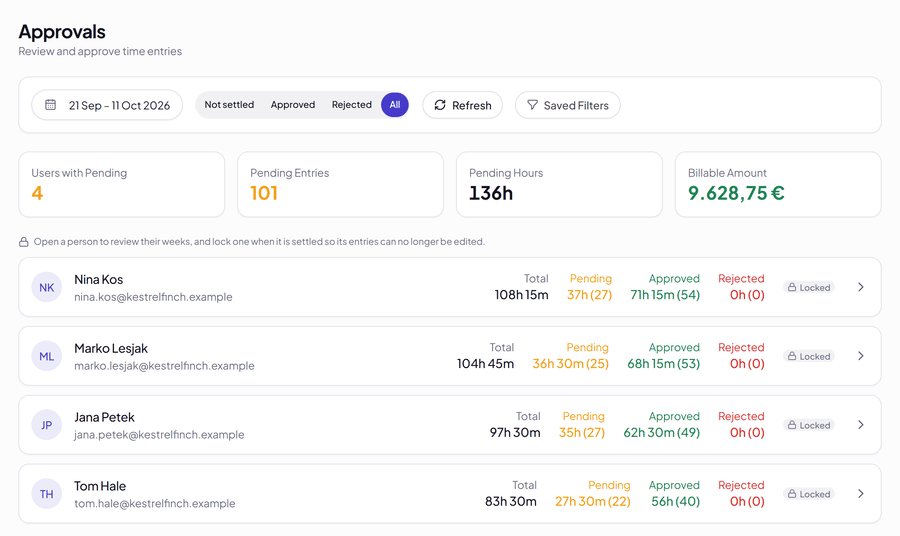
Approvals

Your whole team’s hours in one place.

See who has hours waiting, how many entries there are and what they’re worth. Open a person to go through their weeks and approve or reject entries one by one, or all of the pending ones at once.

  • Not settled
  • Approved
  • Rejected
The Approvals page: four people with hours pending review, each with totals for pending, approved and rejected time.
Locked weeks

A locked week can’t be edited.

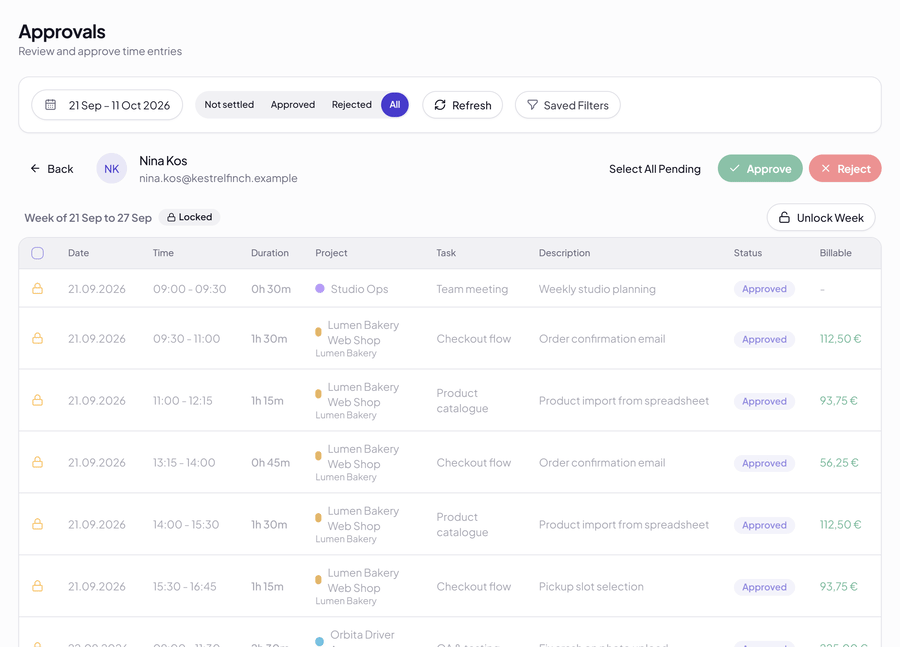
Lock a week after it’s approved and nobody can edit its entries, so nothing changes after you’ve billed it. If something does need fixing, unlock the week first.

  • Lock week
  • Unlock week
One person's locked week: every entry approved and marked with a lock, with an Unlock Week button.
Rate privacy

Only owners and admins see rates.

Billable rates, budgets and commissions go to owners and admins only. Everyone else never receives them from the server, so they aren’t just hidden on screen. Their reports and exports show hours only, with a note that says so.

  • Owner
  • Admin
  • Manager
  • Member

Bill

From hours to paid invoices.

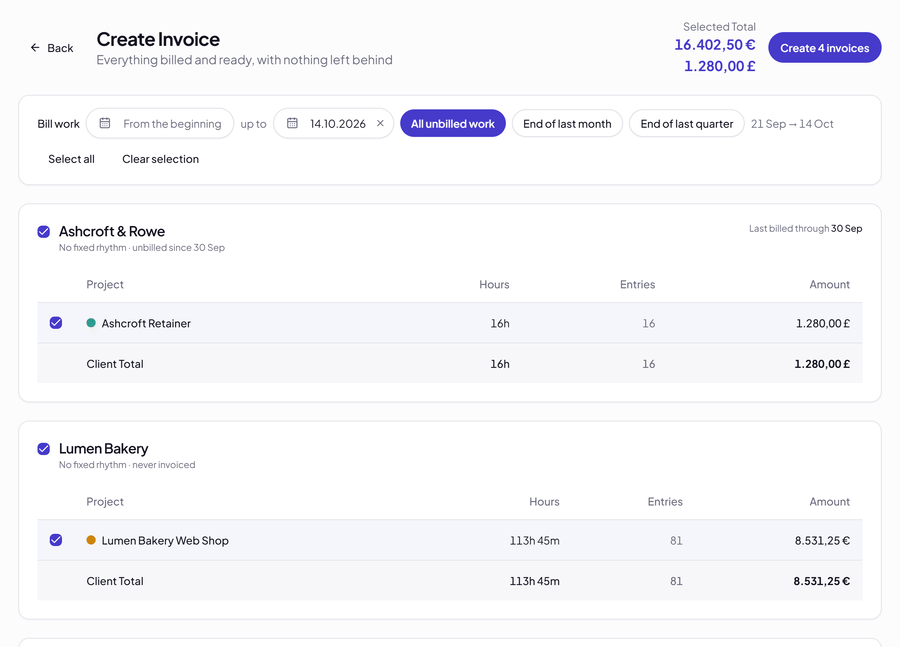
Create Invoice: unbilled hours grouped by client, with a selected total in euros and in pounds and a button to create four invoices.

Unbilled hours in one list

Everything that hasn’t been invoiced yet, grouped by client. Bill all of it, or only up to the end of last month or last quarter, and create each client’s invoice in one go.

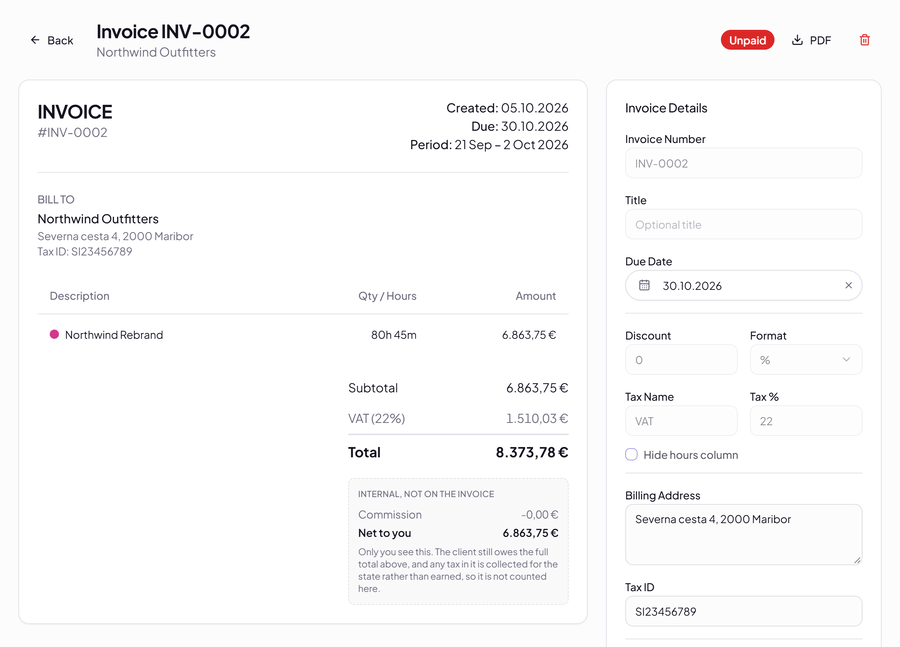
An invoice with its line, subtotal, VAT and total, a PDF button, and an internal panel marked "not on the invoice" showing the amount net to you.

An invoice in the client’s currency

Each client has its own currency and gets invoices in it, with VAT, an optional discount and a PDF. If a middleman takes a cut, an internal panel shows what’s left for you. The client never sees that panel.

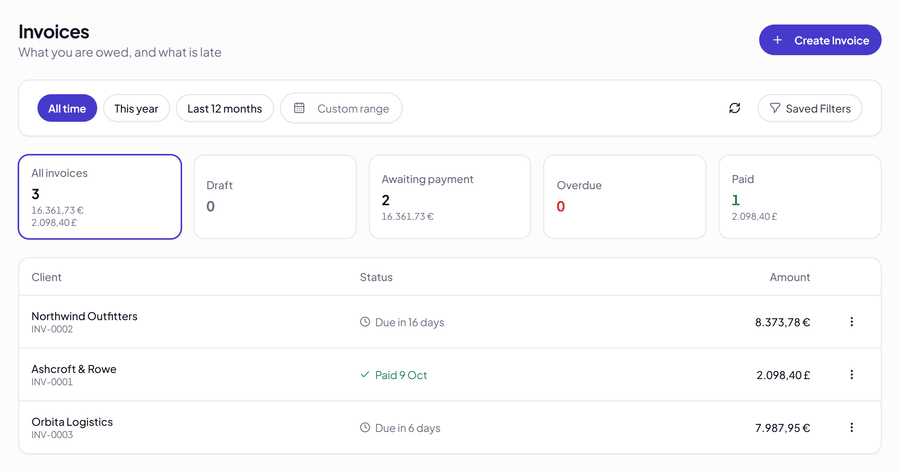
The invoice list: counts for draft, awaiting payment, overdue and paid, with totals shown separately in euros and pounds.

What you’re owed and what’s late

See drafts, unpaid, overdue and paid invoices at a glance. Totals are kept per currency, so euros and pounds sit side by side and are never added together.

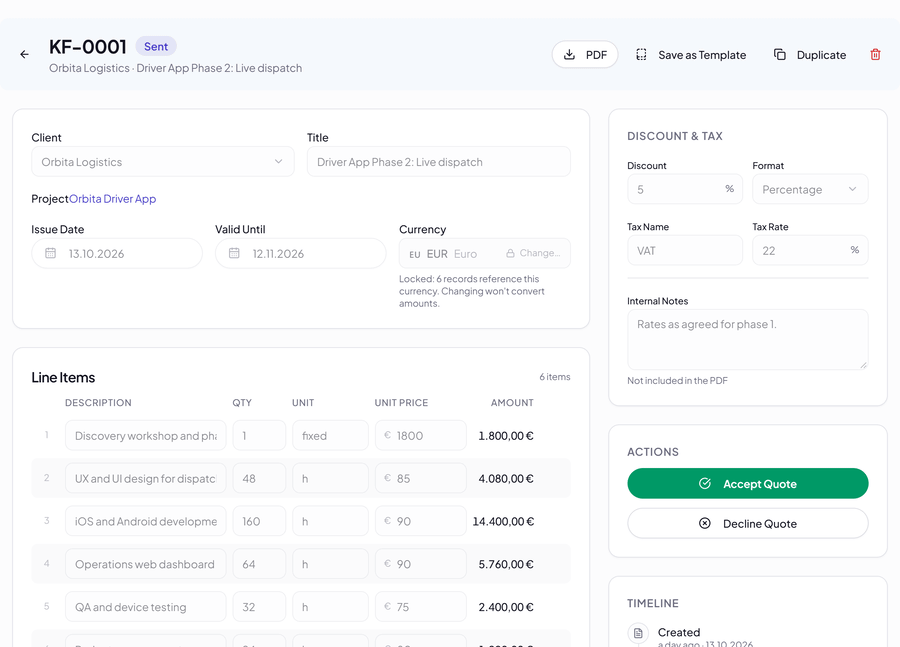
A sent quote with its client, dates, currency, line items, discount and VAT, and buttons to accept or decline it.

Or start with a quote

Fill in the form, write a longer proposal page by page, or attach a PDF you made elsewhere. Send it, and when the client accepts, turn it into an invoice.

The first page of a quote PDF: the studio's details, the client, the dates, a short introduction and six priced line items.

Quotes as tidy PDFs

Each quote goes out as a PDF with your details, the line items, discount and VAT. Save one as a template, or copy it for the next client.

Plan

Spot the busy weeksbefore they arrive.

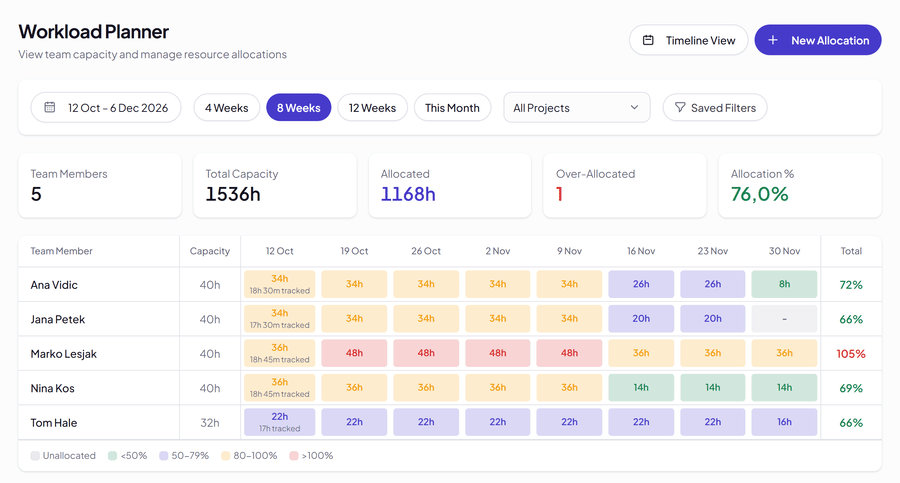
The workload planner puts each person’s planned hours next to their capacity, week by week, and colours the result. You see an overloaded week while there’s still time to move work around.

The Workload Planner over eight weeks: one row per person with their capacity, each week's allocated hours coloured from under 50% to over 100%, and a total per person.
  1. Allocations

    Plan hours per person and project weeks ahead, against the hours each person actually has.

  2. Clashes

    A week booked over capacity turns red, and the timeline lists the clashes.

  3. Timeline

    Switch to the timeline view to lay the work out across the team, week by week.

Report

See which workactually pays.

An overview and four reports on the same hours: where the time went, who worked more or less than planned, and what the work earned compared with what it cost.

Profitability

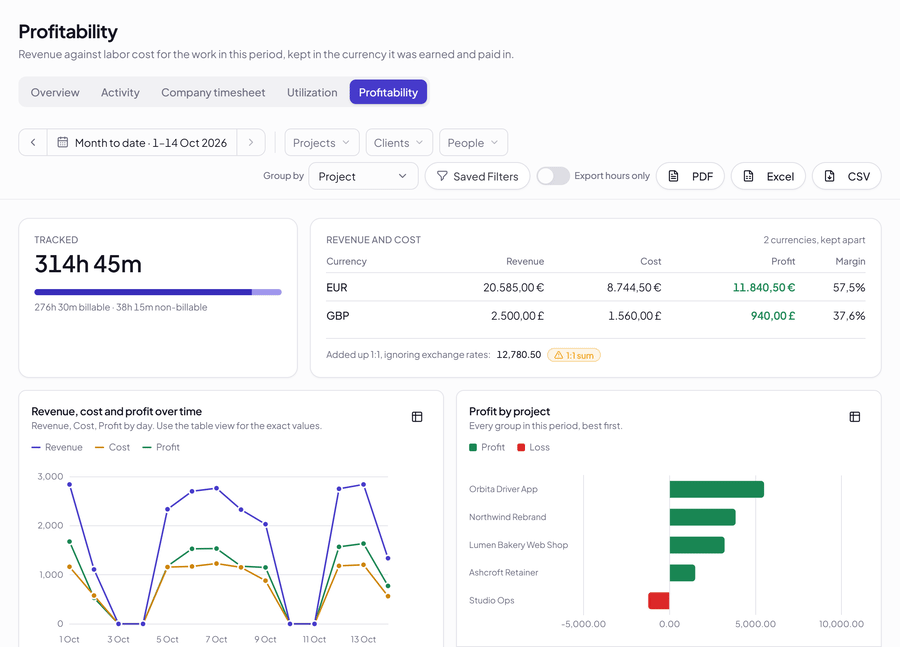
Revenue against labour cost by project, client or person, in the currency it was earned in, with the most profitable at the top.

The Profitability report: hours tracked, revenue, cost, profit and margin per currency, profit over time and profit by project.

One overview, four reports

Activity, the company timesheet, utilization and profitability, each one a tab away.

  • Overview
  • Activity
  • Company timesheet
  • Utilization
  • Profitability

PDF, Excel, CSV

Every report exports to all three, so you never have to ask anyone for the numbers.

Currencies kept apart

Euros and pounds are shown side by side, not added together. If you do want them summed one to one, the report clearly says so.

Budgets and retainers

Get an alert when a project has used the share of its budget you set, in the app, by email or both. Retainers can carry unused hours over to the next months.

Expenses, with receipts

Log costs as they happen, attach the receipt, and export them with everything else.

Light & dark

Light or dark, whichever you like.

Pick light or dark, or let ClockDoc follow your system setting. Every screen works in both. Drag the divider to compare them.

The week calendar in the light theme.
The same week in the dark theme.

Free during the beta

  • Every feature is included, for everyone on your team.
  • There’s no trial period, and we don’t ask for a card.
  • After the beta, teams of up to 5 people stay free. Larger teams will pay a small amount per person, and we’ll announce the prices well before the beta ends.

ClockDoc is made by Grasp, a software studio in Slovenia. We built it for our own projects, still use it ourselves, and decided to open it up to everyone.

€0.00

What ClockDoc costs during the beta, for your whole team.

On your phone

ClockDocon your phone.

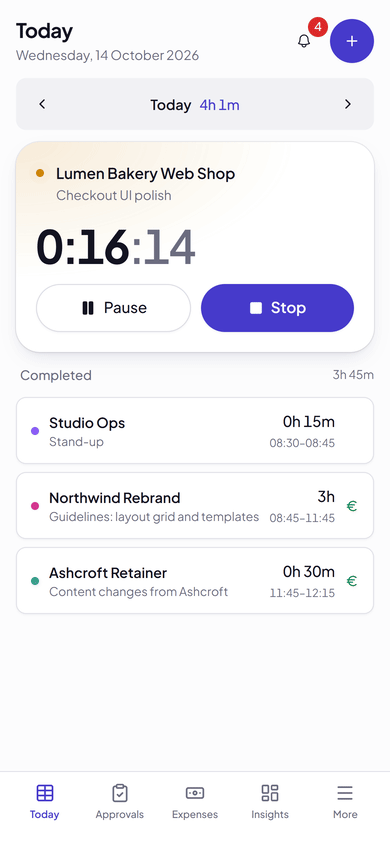
Add ClockDoc to your home screen and it opens in its own window like an app, with a layout made for phones.

  • TodayThe running timer and the day’s entries.
  • ApprovalsReview the team’s pending time on the move.
  • ExpensesLog a cost while the receipt is in your hand.
  • InsightsHours today, this week and this month, and where they went.

Without a signal you can still see your recent week and projects. Logging new time needs a connection.

ClockDoc on a phone: Today, with a running timer on Lumen Bakery Web Shop, the day's completed entries, and tabs for Today, Approvals, Expenses, Insights and More.

Import & teams

Bring your teamand your old hours.

Import from spreadsheets
Clients, projects, tasks, team members and past time entries, from CSV files. The hours you logged somewhere else come with you.
Roles
Owner, Admin, Manager and Member for the organisation, plus Manager, Member or Viewer on each project.
Teams and organisations
Group people into teams, and switch between organisations from one account.
Signing in
With a Google account or an email address.

What you get

Timesheet
Log a week in the grid, or start a timer and let it run. The calendar view shows the same hours laid out across the day.
Projects and tasks
Rates, budgets and members per project. Every project has a colour, so you can read a week at a glance.
Approvals
Submit a week for review, approve it, then lock it so nothing changes after it’s been billed.
Invoices and quotes
Turn unbilled hours into an invoice in the client’s own currency, and send a quote before the work starts.
Reports
Where the hours went, what they were worth, who is over or under, and what is still waiting to be billed. Export to CSV, Excel or PDF.
Workload
Allocations per person and project against their capacity, week by week, with the overloaded weeks in red and a timeline to schedule across the team.
Budgets and expenses
Budget alerts at the threshold you choose, retainers that roll unused hours forward, and expenses logged with their receipts.
Import
Bring clients, projects, tasks, team members and past time entries in from CSV files.
On your phone
Install it to your home screen and it opens like an app. Your week stays readable without a signal.
Questions

Something else? Write to info@grasp.si.

Is it free?

Yes, during the beta: every feature, for everyone on your team, with no trial and no card. After the beta, teams of up to 5 people stay free and larger teams pay a small amount per person. We’ll announce the prices well before the beta ends.

Who is behind it?

Grasp, a software studio in Slovenia. We built ClockDoc to run our own projects and bill our own clients, and we still use it.

What happens to my data if ClockDoc stops?

You can export your time, reports and invoices to CSV, Excel or PDF whenever you like, without asking anyone. Your data isn’t locked in.

Does it work on a phone?

Yes. Install it to your home screen and it opens in its own window like an app. Without a signal you can still see your recent week and projects, but logging new time needs a connection.

Can I bill clients in different currencies?

Yes. Each client can have its own currency, and their invoices are in it. Work in two currencies goes on two separate invoices and is never added together.

Start trackingthis week.

Signing up takes a minute, and it’s free during the beta.

Northwind rebrand3h 30m
Internal1h
Mon4h 30m
Northwind rebrand5h
Kestrel API2h 30m
Tue7h 30m
Kestrel API6h
Ashcroft retainer1h 30m
Wed7h 30m
Ashcroft retainer4h
Northwind rebrand2h
Internal1h
Thu7h
Kestrel API3h
Meridian pitch2h 30m
Fri5h 30m
A week in ClockDoc: 32h across five projects, each in its own colour.